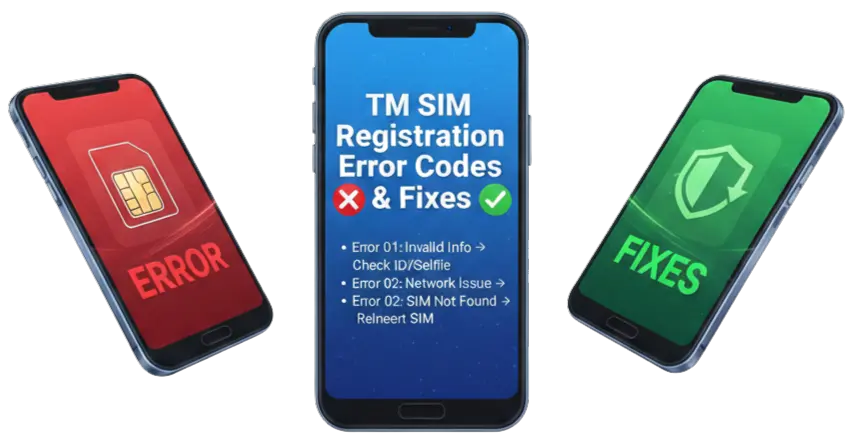
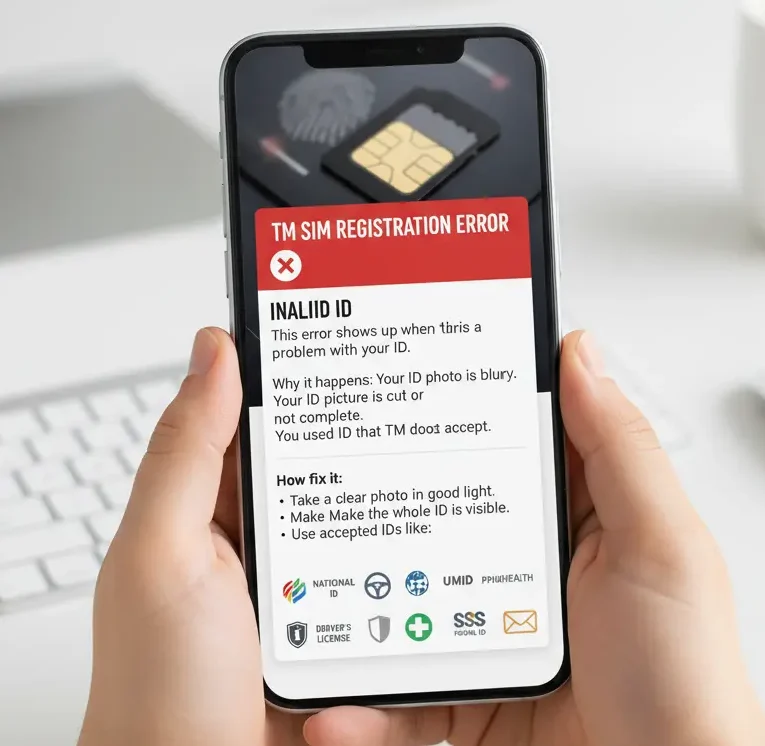
This error shows up when the system cannot read or accept your ID details.
What causes this error:
- You typed your ID number wrong
- The ID type does not match what you selected
- Your ID photo is not clear enough
- The ID has expired
How to fix it:
Check your ID number carefully. Make sure every number and letter matches exactly what is on your physical ID. Even spaces and dashes matter.
Make sure you picked the right ID type from the dropdown menu. If you have a Postal ID select “Postal ID” not Driver’s License or anything else.
Take a new photo of your ID in good lighting. The photo should be clear and all text should be easy to read. Avoid shadows or glare on the ID.
Use a valid non-expired ID. Check the expiration date on your ID card.
2. "Invalid OTP" Error
OTP means One-Time Password. This is the code sent to your phone number for verification.
What causes this error:
- You entered the wrong OTP code
- The OTP expired (usually after 5-10 minutes)
- You have network problems and did not receive the code
- You tried too many wrong codes
How to fix it:
Wait for the OTP message to arrive. Sometimes it takes 1-2 minutes especially if the network is busy.
Type the OTP exactly as shown in the message. Do not add spaces. The code is usually 6 digits.
If the OTP expired, request a new one. Click on “Resend OTP” and wait for a fresh code.
Make sure you have enough load or signal to receive SMS messages. Sometimes OTP fails to arrive because of zero balance or weak signal.
Check if you accidentally blocked messages from Globe/TM. Go to your phone settings and make sure SMS from the sender is allowed.
3. System Maintenance or Server Error
This error means the TM registration system is down or too busy.
What causes this error:
- Scheduled maintenance by Globe/TM
- Too many users at the same time
- Technical problems on the server side
- System updates happening
How to fix it:
Wait for 30 minutes to 1 hour, then try again. System maintenance usually does not last very long.
Try registering during off-peak hours. Early morning (6-8 AM) or late night (10 PM-12 AM) usually works better because fewer people are using the system.
Check Globe or TM social media pages. They sometimes announce when maintenance is happening.
Close the app completely and restart it. Sometimes this helps reset the connection.
Try using a different device or browser if possible.
4. Invalid Selfie Photo Error
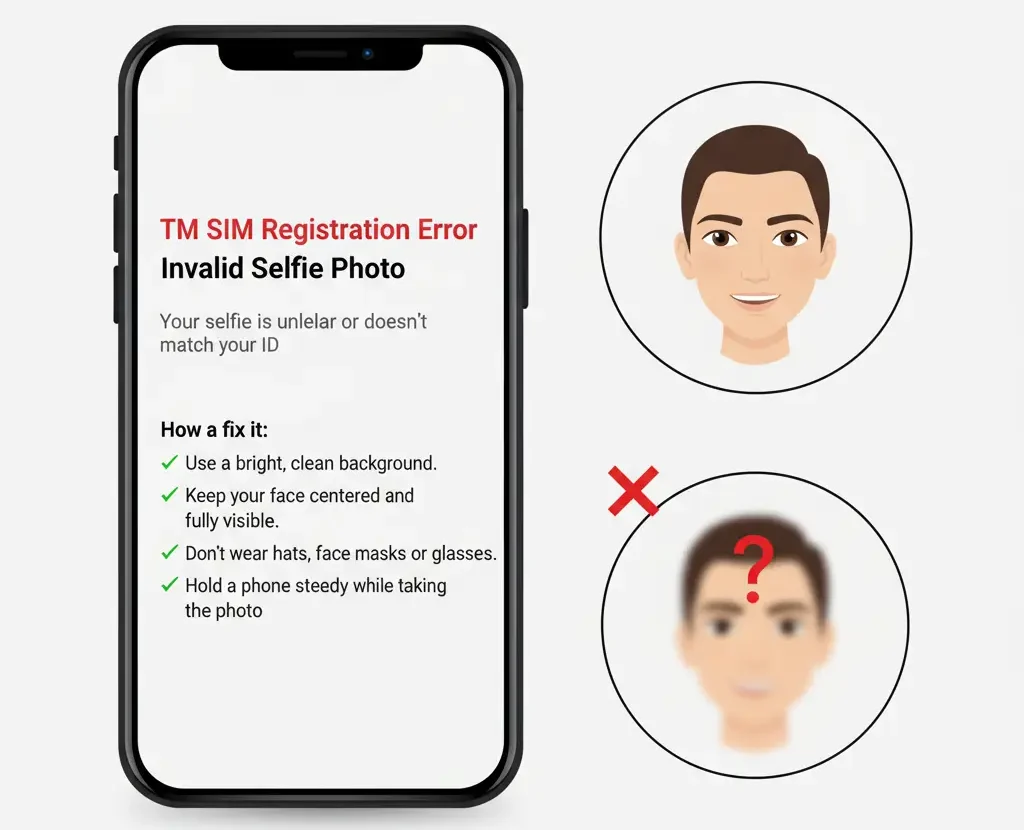
The registration system is very strict about selfie photos. This error happens when your selfie does not meet the requirements.
What causes this error:
- Photo is too dark or too bright
- Your face is not clearly visible
- Photo is blurry or low quality
- Wrong photo format or size
- Wearing sunglasses or face mask
- Someone else is in the photo
How to fix it:
Take your selfie in a bright room with good lighting. Natural daylight works best. Avoid using flash as it can create glare.
Make sure your whole face is visible and centered. Look directly at the camera.
Remove sunglasses, hats or masks. Your face should be clearly visible.
Hold your phone steady when taking the photo. A blurry photo will be rejected.
Use the rear camera if your front camera quality is poor.
Make sure the background is plain and not too busy or distracting.
The photo should be recent and match your current appearance.
5. Weak or No Signal Error
This happens when your internet connection is not strong enough to complete the registration.
What causes this error:
- Poor mobile data signal
- Weak WiFi connection
- Network congestion in your area
- SIM card not properly inserted
How to fix it:
Move to a location with better signal. Go near a window or outside if needed.
Switch between mobile data and WiFi to see which works better.
Restart your phone. This often refreshes the network connection.
Make sure your SIM card is properly inserted in the phone.
Turn on Airplane Mode for 10 seconds, then turn it off. This resets your connection.
If using WiFi, move closer to the router or restart the router.
Try using a different network if available.