
Best APN Settings for TM: For Fast Internet (2026)
Getting your TM internet to work properly starts with the right APN settings. I’ve helped hundreds of people fix their slow internet or connection problems just by changing these settings.
I have helped dozens of people fix their TM internet connection issues and in this guide I will show you exactly how to set up your APN settings correctly. Whether you use Android or iPhone, I have got you covered with step-by-step instructions.
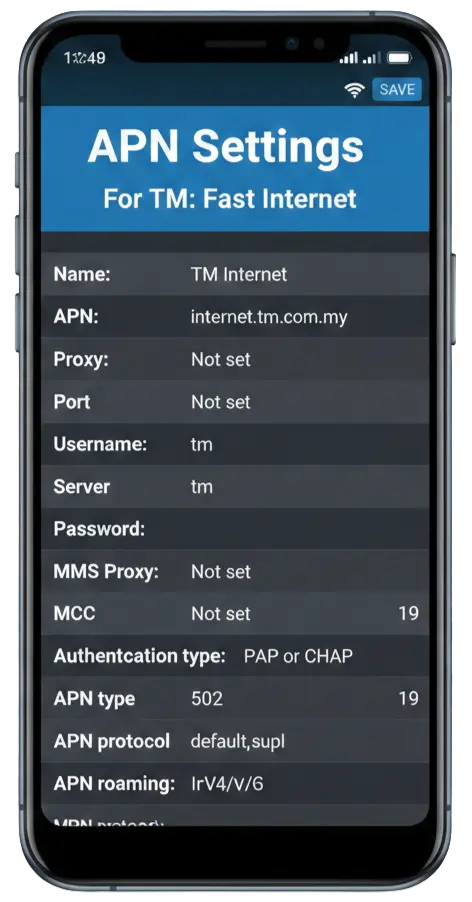
What is APN and Why You Need It?
APN stands for Access Point Name. Think of it like a door that lets your phone connect to the internet through TM’s network after tm sim registration.
When you use mobile data your phone needs to know which “door” to use. The APN tells your phone how to connect to TM’s internet service. Without the correct APN settings your mobile data won’t work.
You need to check your APN settings when:
- Your mobile data is not working
- Internet is very slow
- You just got a new SIM card
- You reset your phone
TM APN Settings for Android Phones
Here are the correct TM APN settings for your Android device.
How to Set Up APN Settings for TM on Android
Step 1: Open Settings on your phone
Step 2: Tap on “Connections” or “Network & Internet” (name changes based on your phone)
Step 3: Tap on “Mobile Networks”
Step 4: Tap on “Access Point Names”
Step 5: Tap the “+” button or “Add” to create a new APN
Step 6: Enter the settings from the table below
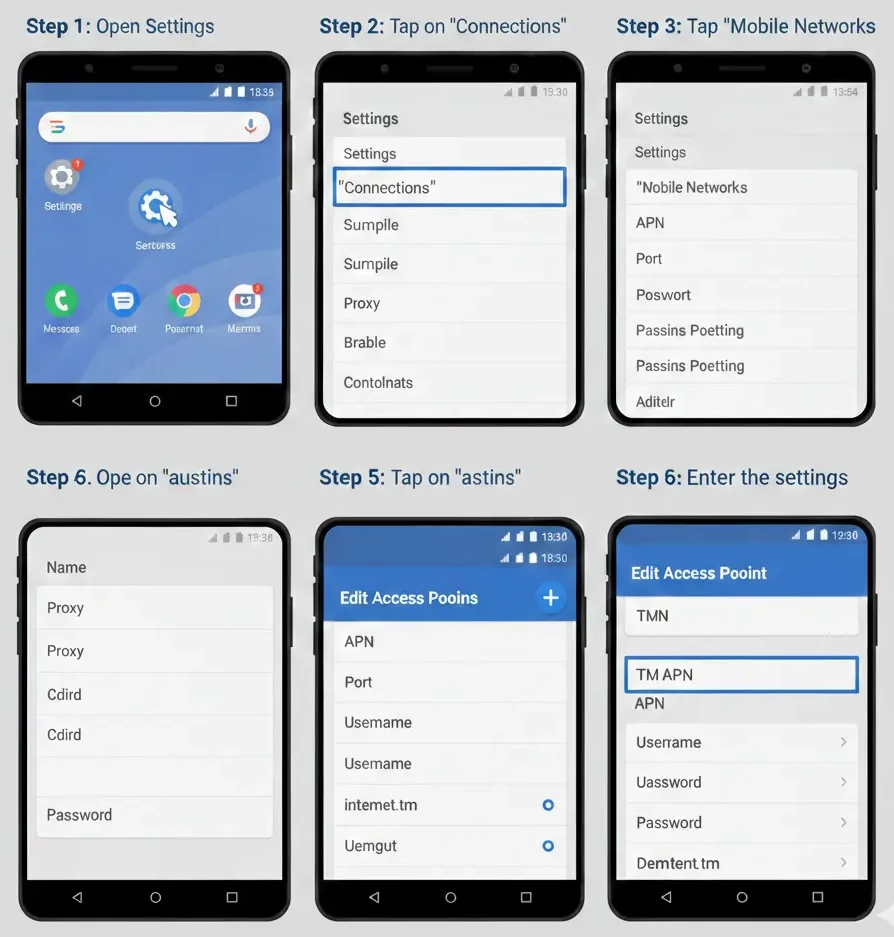
TM Default APN Settings for Android
| Setting Name | What to Type |
|---|---|
| Name | TM Internet |
| APN | net |
| Proxy | Leave blank |
| Port | Leave blank |
| Username | Leave blank |
| Password | Leave blank |
| Server | Leave blank |
| MMSC | http://mms.tm.com.my |
| MMS Proxy | 10.128.1.242 |
| MMS Port | 8080 |
| MCC | 502 |
| MNC | 16 |
| Authentication Type | None |
| APN Type | default,supl,mms |
| APN Protocol | IPv4/IPv6 |
| Bearer | Unspecified |
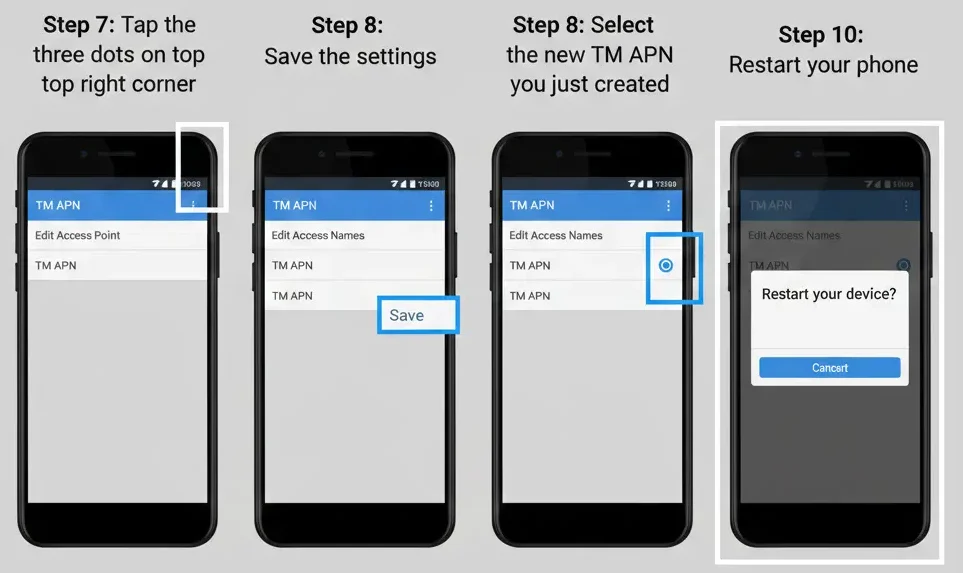
Step 7: Tap the three dots on top right corner
Step 8: Save the settings
Step 9: Select the new TM APN you just created
Step 10: Restart your phone
To learn about social media and TM promos, check out this latest guide.
TM APN Settings for iPhone
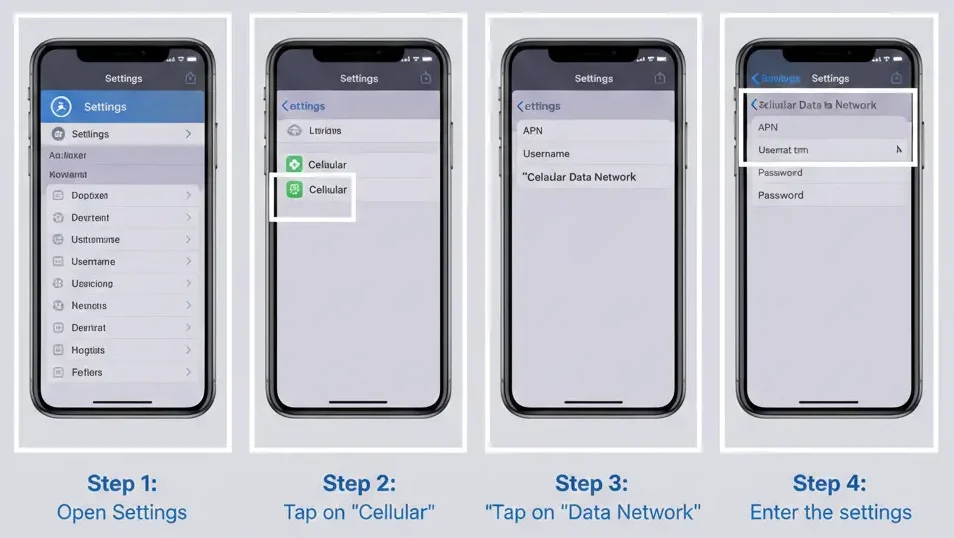
How to Set Up TM APN on iPhone
iPhone setup is a bit different but still very easy.
Step 1: Open Settings
Step 2: Tap on “Cellular” or “Mobile Data”
Step 3: Tap on “Cellular Data Network” or “Mobile Data Network”
Step 4: Enter the settings from the table below
TM Default APN Settings for iPhone
| Setting Name | What to Type |
|---|---|
| Cellular Data APN | net |
| Username | Leave blank |
| Password | Leave blank |
| LTE Setup (Optional) | net |
| MMS APN | net |
| MMS Username | Leave blank |
| MMS Password | Leave blank |
| MMS Proxy | 10.128.1.242:8080 |
| MMS Max Message Size | 1048576 |
| MMS UA Prof URL | Leave blank |
| MMSC | http://mms.tm.com.my |
Step 5: Go back and restart your iPhone
Your mobile data will start working!
If it is not working you can check your tm sim balance for using the Data.
How to Reset TM APN Settings
Sometimes your APN settings get messed up. Here’s how to fix it.
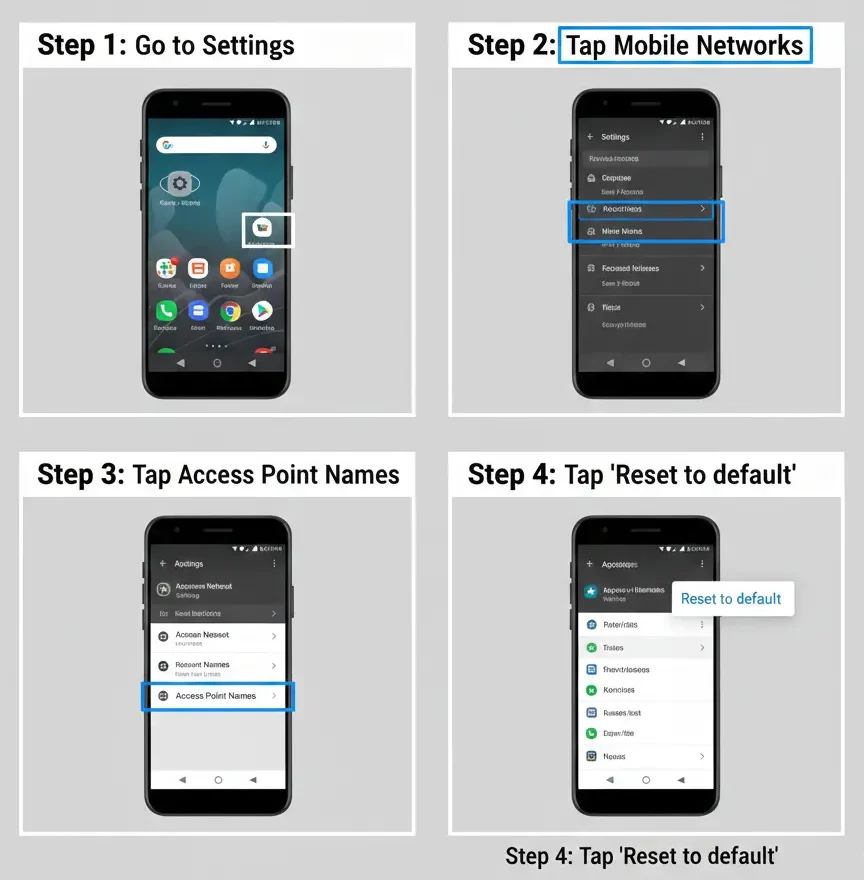
For Android:
Sometimes your APN settings get messed up. Here’s how to fix it.
- Go to Settings
- Tap Mobile Networks
- Tap Access Point Names
- Tap the three dots on top
- Tap “Reset to default”
- Your phone will bring back the original settings
How to Restore TM APN Settings on iPhone
- Open Settings
- Tap General
- Tap Transfer or Reset iPhone
- Tap Reset
- Tap “Reset Network Settings”
- Enter your passcode
- Confirm reset
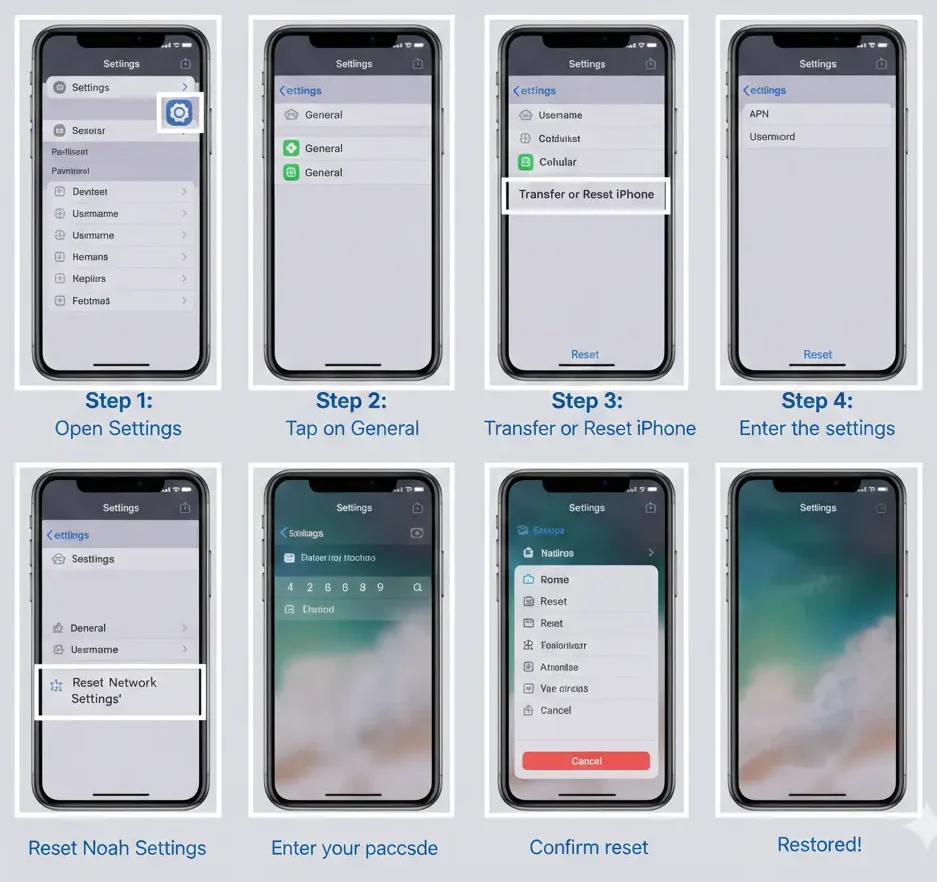
- Note: This will delete your WiFi passwords too. You will need to enter them again.
How to Delete TM Access Point Name Settings
Want to remove an old or wrong APN? Here’s how.
For Android:
- Open Settings
- Go to Mobile Networks
- Tap Access Point Names
- Long press on the APN you want to delete
- Tap Delete
For iPhone:
You cannot delete APN on iPhone. But you can reset it using the steps I showed above in the reset section.
Best TM APN Settings for Fast Internet and Gaming
The default TM APN works fine for most people. But if you want faster internet for gaming or streaming try these tips:
Use the same settings from the tables above but:
- Make sure APN Protocol is set to “IPv4/IPv6”
- Check that APN Type includes “default, supl, mms”
- Bearer should be “Unspecified”
Extra tips for faster internet:
- Restart your phone after changing APN
- Turn Airplane mode ON, wait 10 seconds, turn it OFF
- Make sure you have good TM signal (3-4 bars)
- Clear your browser cache
- Close apps running in background
For gaming:
- Use 4G/LTE instead of 3G
- Stay in areas with strong signal
- The APN won’t make gaming faster, but good signal will
- Note: Your internet speed depends more on your TM plan and signal strength than APN settings. APN just helps your phone connect properly.
TM APN Settings Troubleshooting Tips
Problem 1: Mobile data not working
- Check if mobile data is turned ON in settings
- Make sure you have data balance
- Restart your phone
- Re-enter APN settings from the tables above
Problem 2: Very slow internet
- Check your signal strength
- Move to a place with better coverage
- Reset network settings
- Call TM customer service: 100
Problem 3: Can browse but can’t download
- Check APN Type includes “default”
- Make sure APN is set to “net”
- Clear app cache
Problem 4: MMS not sending
- Check MMSC is: http://mms.tm.com.my
- MMS Proxy is: 10.128.1.242
- MMS Port is: 8080
- Restart phone after saving
Problem 5: APN keeps resetting
- Don’t use automatic APN selection
- Save your APN and select it manually
- Update your phone software
Conclusion
Setting up TM APN is simple. Just use “net” as your APN name and fill in the other settings from the tables above. Most of the time your phone will set this up automatically. But if your internet stops working you now know how to fix it yourself.
Remember to restart your phone after changing APN settings. If problems continue call TM at 100 or visit their store.
FAQs
What is the APN for TM?
The APN for TM is “net”. Just type “net” in the APN field and save
Why is my TM internet not working?
Check if your APN is set to “net”. Also make sure mobile data is turned on and you have data balance.
Can I use TM on 5G?
Yes, if you have a 5G phone and 5G plan. Use the same APN settings. Your phone will automatically use 5G when available.
Do I need different APN for TM hotspot?
No The same APN works for regular internet and hotspot.
Will wrong APN damage my phone?
No Wrong APN will just stop your internet from working. It won’t damage your phone.